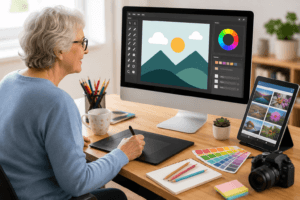
Building an engaging online classroom environment for seniors takes thoughtful planning and a good sense of what makes digital learning enjoyable and accessible.
Many older adults are eager to keep learning online, whether it’s for personal growth, connecting with others, or just exploring new interests. Creating a space that feels welcoming, interactive, and easy to follow is key to making sure everyone gets the most out of their lessons. Here’s how I like to approach this process, along with the best tools for online senior learning and some real tips that have helped many teachers including myself.
Why Creating an Engaging Online Classroom Environment for Seniors Matters
Online education has opened up doors for seniors who want to keep their minds sharp or stay connected to a community. What I’ve noticed is that a thoughtfully planned digital classroom for seniors builds confidence and independence, not just learning. When the setup is clear and interactive, it makes learning more enjoyable, helps prevent frustration, and encourages everyone to participate. A balanced mix of technology, communication, and a personal touch turns a virtual space into a real community.
Many older adults face common hurdles, like unfamiliar tech platforms or smaller device screens. That doesn’t mean they can’t adapt. It simply takes tools and strategies that match their needs. The best practices for senior online teaching focus on making everything as approachable, understandable, and friendly as possible.
Getting Started: Setting Up a Senior Friendly Online Classroom
The foundation of a great online learning environment starts with picking a reliable, easy to find your way around platform. Senior friendly online learning platforms such as Zoom, Google Meet, and Microsoft Teams tend to offer clean interfaces and good accessibility options. Features like large buttons, easy access to help, and screen reader compatibility are pretty handy.
- Zoom: Clean interface, widely used, and lots of support material. I often help seniors practice Zoom routines, such as muting or unmuting, switching gallery views, and sharing screens in test sessions before real classes start.
- Google Meet: Simple to use with clear audio and video. Seniors who use Gmail already find it easy to join meetings with a simple click.
- Microsoft Teams: Great for classes with group projects or document sharing, and it provides help with accessibility settings.
- Moodle and Canvas: These platforms offer full online classroom experiences, but I recommend them mostly if you have lots of lessons to organize over several weeks.
Once you pick your platform, make sure everyone gets an introductory session. I always walk my students through everything, from how to join a session to how to use chat or raise a hand digitally. A slow and steady approach helps build digital confidence right from the beginning.
Best Tools for Online Senior Learning
Picking the right tools is important for creating a digital classroom for seniors. Some tools are better suited for older learners thanks to large fonts, uncluttered layouts, and userfriendly features. Here are a few that have worked really well for me and my students:
- Kahoot!: An interactive quiz tool that’s ideal for reviewing material in a fun way. I use simple, bold questions with large images or text.
- Padlet: Lets students post ideas, photos, or answers on a virtual board. It keeps group activities visual and organized.
- Google Jamboard: This interactive whiteboard is great for brainstorming or explaining tough concepts visually. I like letting students doodle or label images as we go.
- ReadSpeaker: Adds text to speech options for those who’d rather listen than read.
Even traditional tools like group email updates or simple PDF handouts can be useful. Having a bit of variety helps keep things fresh without overwhelming the class. To keep things lively, I sometimes include virtual field trips to museums or nature sites, adding an extra dimension to class sessions. These outings spark curiosity and group discussion, making for a memorable experience.
Top Strategies for Senior Online Education
Having the right tools is only one part of the equation. The way lessons are delivered and the routines you put in place play a huge role in engagement. Here are some top strategies for senior online education that I use often:
- Keep Lessons Short and Focused: Attention spans are better when lessons last 30 to 45 minutes with a break in between. Each session should stick to one main goal to avoid overload.
- Switch Up the Activities: I like to alternate between group discussions, show and tell, quizzes, and short videos. This keeps everyone involved, especially those who might need a nudge to speak up.
- Use Visuals and Handouts: Simple slides, diagrams, or infographics make it easier to follow along. I always send handouts or follow up notes for reference.
- Allow Extra Time for Questions: Building in Q&A breaks lets students know their voices matter and gives them time to process new information.
- Create a Routine: Kicking things off each session with a welcome and a quick icebreaker creates consistency. Ending with a summary reinforces what’s been covered.
Trying out different formats is a good way to see what works best for your group. Flexibility is important, too. If an activity isn’t landing well, I’m always ready to make changes on the fly based on feedback or even a gut feeling in the moment. Sometimes I ask my students what types of activities they want to try, adding a sense of ownership to their learning adventure.
Creating Interactive Online Lessons for Seniors
The real energy in a digital classroom comes from involvement. Creating interactive online lessons for seniors is straightforward if you keep things simple and include plenty of chances to connect. Here are some approaches I use regularly:
- Polls and Live Surveys: Tools like Zoom polls and Google Forms are great for instant feedback. I ask questions about hobbies, current events, or class topics to spark conversation.
- Breakout Groups: Small group sessions help those who might feel shy in larger settings. I let students work together for a bit, then regroup and share what they discussed.
- Show and Tell Segments: Seniors often bring life experience to the table. I’ll ask them to share an object, a story, or even a photo related to the topic. These moments always bring the most smiles and start new conversations.
- Collaborative Docs: Google Docs makes real time sharing and group editing super simple. I use them for group lists, shared stories, or planning virtual events together.
Giving everyone a chance to take part, even just once per session, makes the classroom feel alive. The point isn’t to pressure anyone, but to make sure everyone knows their input counts. For more advanced classes, I sometimes invite guest speakers to share their expertise, which keeps the spark of curiosity alive and introduces fresh perspectives.
How to Create an Inclusive Online Classroom
Inclusivity is really important for keeping all students engaged. I strive to embrace all types of learning backgrounds, life experiences, and comfort levels with technology. Here’s my approach to inclusivity for senior learners:
- Give Multiple Ways to Participate: Some may want to speak up, others prefer to type or just listen. All options are valuable. Clear communication about participation expectations helps everyone relax.
- Use Plain Language and Large Text: I skip jargon and go for plain, friendly language. Slides and materials are designed with larger fonts and strong color contrast for visibility.
- Offer Tutorials and Guides: Digital handouts, howto videos, or recorded practice sessions can be sent ahead of time. When someone asks for extra help, I either call or set up a onetoone support session to walk them through the basics.
- Celebrate Diversity: Personal stories and different points of view are welcomed and encouraged. This helps everyone see the value in a varied classroom community.
- Encourage Peer Support: Sometimes, seniors help each other solve a tech problem or answer a question faster than I can. I nurture that by creating buddy systems or dedicated “help time” where classmates can chat.
Inclusivity isn’t just about accessibility but about shaping a caring environment where every learner’s background and needs are respected. Offering closed captions, audio transcripts, and visual cues can also help those with hearing or vision challenges join in more comfortably.
Common Challenges in Online Senior Classrooms and How to Overcome Them
Every online classroom has its speedbumps, but some crop up more often in senior groups. Here’s what I see the most and how I work around them:
- Tech Troubles: Slow connections, audio dropouts, or tricky logins can disrupt learning. Patience, backup instructions, and a dedicated “tech helper” (if possible) smooth the way.
- Screen Fatigue: Long video calls can wear students out. Frequent breaks, screenfree stretches, and mixing up activities help prevent tired eyes and minds.
- Lack of Confidence: Some seniors are convinced they’re “not techsavvy.” I remind them we’re all learning, applauding every achievement—even mastering the “mute” button deserves a cheer.
- Hearing or Vision Issues: Clear audio, subtitles, and screen magnifiers matter. I also make sure to describe visuals out loud so no one is left out.
Addressing these challenges early, with empathy and flexibility, makes the online classroom experience smoother for everyone. Sending out troubleshooting tips and having a checklist of quick fixes can save class time and ease nerves.
Best Practices for Senior Online Teaching
Some practical habits will help both new and experienced teachers run successful online sessions for seniors. Here are a few best practices for senior online teaching that I follow:
- Do Regular Feedback Checkins: I check the mood of the room with thumbs up or down signals or short polls. If something isn’t working, I make quick adjustments to help everyone out.
- Practice Clear and Positive Communication: Clear, slow speech and lots of encouragement build trust. Joking about little tech mishaps lightens the mood and makes everyone feel more at ease.
- Stick to Consistent Schedules: Predictable class times, clear agendas, and reminders help students build online routines and manage their time.
- Shine a Light on Progress: Learning is an adventure. I like to call out achievements, milestones, or even bravery in trying something new.
Building a rapport through personal touches like using students’ names or mentioning their interests brings out the best in the group. When students know you remember their background or hobbies, it increases their sense of belonging.
Frequently Asked Questions
Plenty of students and instructors have questions about senior online learning. Here are some of the most common ones I hear:
Question: What are some senior friendly online learning platforms?
Answer: Platforms like Zoom and Google Meet are a solid choice, while services like Coursera and Senior Planet offer curated, low barrier courses meant for older adults. It’s worth checking in with local libraries or community centers as they often have partnerships offering free access.
Question: Which devices are best for participating in an online senior classroom?
Answer: Tablets and laptops with large screens and good speakers work best for most seniors. Some in my classes also use smartphones, but small screens can be tough. Setting up an external webcam or microphone can make a noticeable difference, providing clearer sound and visuals.
Question: How can teachers make online lessons interactive and inclusive?
Answer: Mixing up lesson styles, using visuals, adding polls, and encouraging group chats help everyone stay involved. Always provide multiple ways for students to participate, whether that’s out loud, in writing, or by sharing photos and stories. It’s important to check in privately with those who are quieter or struggling.
Question: What if students struggle with technology?
Answer: A patient attitude, onetoone support, and stepbystep handouts are incredibly useful. Recording tutorial videos and offering “help sessions” before the course begins smooth the learning curve and boost confidence immediately.
Final Thoughts
Building an engaging online classroom environment for seniors isn’t about making things fancy. It’s about making them friendly, flexible, and supportive. With the right tech tools, clear routines, and a focus on interactivity and inclusivity, online learning turns into a true community where everyone can grow. I encourage teachers to try different strategies and listen to what seniors need most. A welcoming approach and a willingness to learn together change everything, making digital classrooms experiences that students look forward to joining.
Online senior education is growing fast, and each small improvement makes learning more accessible and enjoyable for older adults everywhere. There isn’t one answer that fits all, but with these tools and ideas, you’ll have a strong foundation to create your own engaging online senior classroom environment. That’s what makes teaching this group of learners both meaningful and rewarding.