Preparing lesson plans for virtual classes with seniors might seem a little intimidating at first, but it’s honestly just about focusing on what makes learning accessible, engaging, and personal for older adults.
I’ve spent a lot of time running online sessions for seniors and have just about seen every scenario you can imagine, from tech mishaps to the glow in someone’s eyes the first time they try an interactive activity. Here’s everything I’ve learned (and wish I’d known early on) about creating virtual classes that older folks actually look forward to joining.
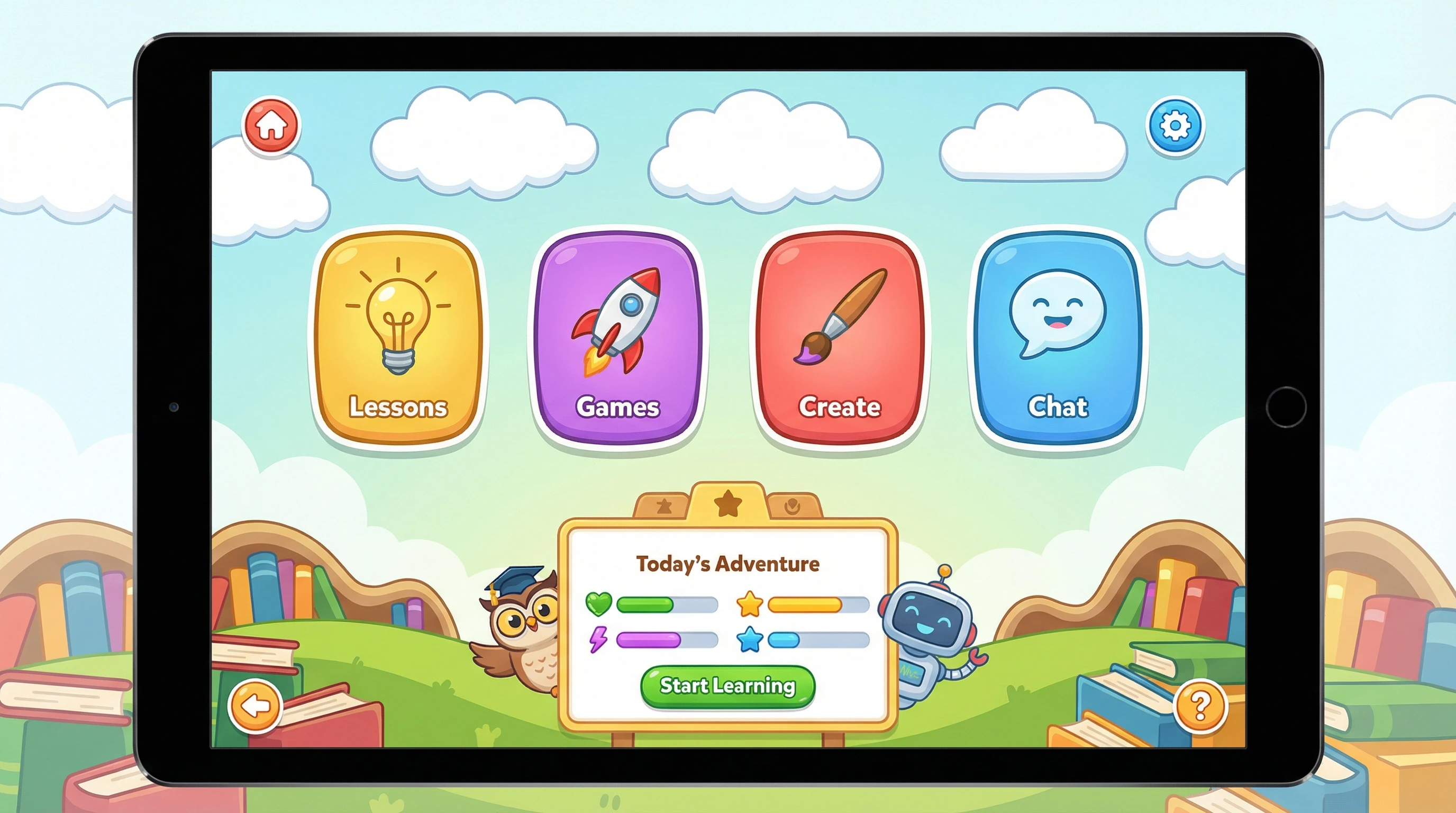
Understanding How Seniors Learn in Virtual Environments
Older adults bring loads of life experience and curiosity to the table, but the digital classroom presents some hurdles. Tech frustrations, unfamiliar platforms, and small text can turn minor details into major stumbling blocks. Designing lesson plans with these issues in mind makes all the difference if you want classes that stick and feel welcoming.
A National Library of Medicine review highlighted that adults over 60 may experience cognitive and physical changes that affect online learning. Slower processing speed, changes in vision, or even joint discomfort when using a mouse or keyboard can impact participation. Still, seniors are some of the most enthusiastic and devoted learners once the basics click. This is why planning with their needs at the forefront leads to truly enjoyable sessions.
Using clear navigation, bigger buttons, and plenty of visuals in your virtual lessons helps flatten the learning curve. Pacing lessons a bit slower, with frequent breaks and chances to ask questions, helps everyone keep up. I rely on seniorfriendly online learning activities to make sure every session feels comfortable and fun.
Building the Foundation: What Every Senior-Focused Virtual Lesson Plan Needs
Before you start making slides or gathering resources, take a moment to sketch out what you want to see in each class. The best virtual teaching strategies for seniors keep things personal, encouraging, and interactive. Here’s my checklist for lesson planning:
- Set clear goals up front: Let everyone know what the class will cover, what you’ll do together, and what participants will walk away knowing by the end.
- Simplify your tech: Pick userfriendly platforms and include oneclick links in all your lesson materials. Zoom, Google Meet, or Jitsi are usually top choices for ease of use.
- Add structure and routine: Stick to a repeatable format (greetings, checkins, lesson, break, hands-on activity, wrap-up) so seniors know what comes next and feel at ease.
- Mix visuals and audio: Use bold images, clear slides, and speak slowly. Captioned videos are a bonus for those with hearing differences.
- Break up the lesson: Insert stretch breaks, quick polls, or checkins every 15-20 minutes to reset focus.
Using this approach keeps lessons clear and enjoyable. Plus, it saves you tons of time in the long run by giving you a simple template to adapt for future classes.
Getting Ready: Before the Virtual Class Starts
Setting a welcoming and smooth pre-class experience lowers anxiety for seniors, especially those brand new to online learning. I use these steps before every session to smooth the way:
- Send friendly reminders: A day or two before, email or text reminders that include the class link, easy instructions for joining, and a quick rundown of what to bring—like paper, a favorite mug, or snacks.
- Offer pre-class tech checks: Open up your virtual classroom 10-15 minutes early so participants can test their video and audio, and get comfortable asking simple questions about the platform. Sometimes, I’ll call or message anyone who hasn’t logged in yet to see if they need help.
- Create a virtual welcome mat: Put up a simple “waiting room” slide showing the class name, a warm greeting, and some light music or fun trivia to set a positive mood.
Designing Engaging and Accessible Lesson Content
The best virtual lesson ideas for older learners are relevant, fun, and rooted in everyday life. Here are a few ways I make online sessions more interactive for seniors:
- Use stories and personal examples: Seniors enjoy relating material to their own experiences. I often kick things off with a short story or tailor a question like, “Who remembers their first job?” to encourage sharing and connection.
- Keep tasks simple and direct: Chunk instructions into small steps, and do frequent check-ins to make sure everyone is following along.
- Mix up activities: Alternate between listening, seeing, speaking, and doing. Quizzes, scavenger hunts, and simple tasks keep the lesson lively and prevent fatigue.
- Stimulate group sharing: Encourage participation at any pace—small groups or typed chat prompts make this much less intimidating.
Favorite Seniorfriendly Online Learning Activities
- Photo sharing: Ask participants to show or describe a photo that relates to your lesson topic. Whether it’s pets, food, or favorite vacations, it always leads to laughter and stories.
- Easy online polls and quizzes: Tools like Kahoot! or Google Forms (set with large print) are perfect for quick, light-hearted check-ins on understanding.
- At-home scavenger hunts: A simple “Find something blue!” sparks movement and conversation, even for those less physically active.
- Brain games and puzzles: JigZone, online crosswords, or memory games can all be shared via screen for everyone to enjoy together.
Choosing Top Tools for Teaching Seniors Online
Your chosen tech toolkit makes planning lessons and running classes much smoother. I select apps and services that are beginnerfriendly and require little to no setup. Here are the digital tools that consistently work well for senior virtual classes:
- Video platforms: Zoom is especially good, thanks to large controls and “raise hand” features. Google Meet and Jitsi are also popular choices. Zoom’s captioning is a game-changer for accessibility.
- Interactive boards: Jamboard and Miro allow real-time collaboration; I’ll prep the space beforehand and then prompt everyone to add stickers, drawings, or notes.
- Quiz and poll apps: Kahoot! and Mentimeter make quizzes fun because participants just click a link in the chat, no signups needed.
- Document sharing: Google Slides and Canva both work well for sharing slides, either to present live or send as support materials before (or after) class.
Common Senior Online Learning Challenges (And How to Handle Them)
Even with the best preparation, some setbacks are pretty common when teaching older adults virtually. Here are some hurdles and fixes I’ve figured out along the way:
- Tech nervousness: New logins, sign-ups, or confusing apps overwhelm many at first. I stick with tools that don’t need extra downloads and keep everything to just a couple of clicks. Whenever possible, I send out a simple handout (with screenshots) with every new platform. Wealthy Affiliate has a handy roundup of seniorfriendly digital platforms if you want a few more suggestions.
- Small fonts or poor contrast: Slides and activities should use bold, high-contrast text—think black on white, blue on light yellow, or green on white for the clearest visuals. A clutter-free layout always wins.
- Physical comfort: Prompt learners to stretch, keep classes around an hour (with breaks), and set “gallery view” so every face is visible. Little touches like these really add comfort.
- Maintaining community and motivation: Even virtually, seniors crave belonging. I use everyone’s names, celebrate small breakthroughs, and leave time for social chat before or after structured activities.
Extra Tips for Adapting in the Moment
- Always have a backup: Tech crashes or audio issues can pop up; I keep alternative versions of every activity ready—email, chat, or another platform, just in case.
- Frequent check-ins: Every 10-15 minutes, I pause for a thumbs-up/thumbs-down or a simple “any questions?” so nobody gets lost along the way.
Putting Best Practices for Virtual Classes with Seniors into Action
Bringing all of this together isn’t about piling on every app or special feature. The best practices for virtual classes with seniors focus on patience, encouragement, and centering your lessons on what your learners truly need. Here’s my regular approach:
- Begin and end each session with friendly conversation to build comfort.
- Introduce each tech feature step by step, with built-in time for exploring and questions.
- Shape lessons around what interests the group—use polls and regular feedback to fine-tune your next class.
- Offer ongoing support. Send out session recordings, recap messages, or printable guides for those who need to practice again or missed the live lesson.
Mix and Match Virtual Lesson Ideas for Elderly Learners
Need more ideas for themes or activities? These virtual lesson ideas for senior groups have always been crowd-pleasers for my classes:
- Virtual travel tours: Share your screen with a Google Earth site, YouTube walking tour, or a slideshow, letting learners “visit” new places together without leaving home.
- Cooking demonstrations: Organize a simple group cookalong or walk learners through a favorite family recipe. Keep ingredient lists short and send them out before class.
- Music and memory: Play old favorites from past decades and swap related stories, helping everyone reminisce and bond.
- Digital art fun: Try free sites like Canva or Sketchpad for easy digital scrapbooks, cards, or festive crafts.
- Brainfitness games: Host trivia, online crosswords, or other classic games as a low-barrier way to jumpstart thinking and participation.
Real-World Example: How One Virtual Session Flows
Let me break down one of my favorite classes: Simple smartphone photography for beginners.
Before the session, I sent an email featuring:
- The meeting link plus step-by-step guidance for joining
- Tips on propping up a phone next to the computer for smoother hands-on practice
- A request for everyone to bring a favorite household object for our photography experiment
During class, we:
- Kicked off with greetings and a poll about how often each person takes photos
- Watched a short, captioned video with practical phone photography tips
- Practiced snapping photos using different objects; some participants shared their phone screens, while others described what they’d captured
- Shared light feedback as a group—a supportive and encouraging atmosphere—and ended with a weekly at-home photo challenge
Features like breakout rooms helped quiet participants feel comfortable sharing, and the class wrapped up with everyone eager to pass on what they’d learned to friends. That’s when you know a lesson has made an impact.
Frequently Asked Questions
What if my class doesn’t have strong computer skills?
Stick with platforms requiring only one or two clicks, use clear printable guides, and go step by step. Be patient. Each session gets easier. Consider offering phone support or open-hours for those who want one-on-one help.
How interactive should my lesson be?
Even a small activity—like answering a poll or showing something to the camera—drastically ramps up engagement. Mixing styles makes learning feel more dynamic and memorable.
What works best for really quiet groups?
Try small breakout rooms, open up direct questions (“Who’s tried this before?”), or prompt personal storytelling. Give quieter folks the option to use chat instead of speaking if that’s more comfortable.
Final Thoughts and Further Resources
Virtual lessons for seniors don’t have to be flashy or overloaded with advanced tech. The heart of a good session is a welcoming spirit, straightforward steps, and lots of encouragement. If you want more hands-on tips, check out the Wealthy Affiliate University for digital tools and advice on building effective online classrooms at any level.
The best virtual teaching strategies for seniors always include adaptability, simple backup plans, and lots of patience. With just a bit of prep, you’ll find your class filled with returning learners, all excited for the next meeting. Happy planning!






This is such a timely and thoughtful piece. As more seniors look to share their expertise or supplement their income through online teaching, your advice on pacing and accessibility is spot on.
I particularly appreciated the point about “bite-sized” learning. It’s easy for instructors to forget that the cognitive load of navigating a new digital platform (like Zoom or Google Meet) is already taxing, so keeping the actual lesson content streamlined is a brilliant way to prevent burnout.
Thank you so much for this generous feedback. I’m really glad the point about bite-sized learning resonated with you.
You’re absolutely right about cognitive load asking learners to absorb new content while navigating unfamiliar platforms can be overwhelming, especially at first. Keeping lessons streamlined isn’t about simplifying ideas, but about respecting learners’ energy and attention so they can stay engaged and confident.
I appreciate you taking the time to share such a thoughtful reflection. It adds an important layer to the conversation around accessible online teaching.