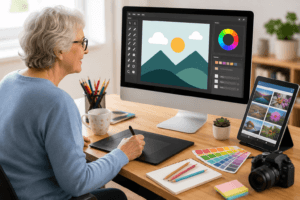
Working from home has changed how many of us connect with coworkers and clients, and video conferencing tools have quickly become a big part of that. For seniors venturing into remote work or picking up flexible gig roles, figuring out these video call platforms can seem a bit daunting at first. The good news is most of today’s tools are built to be user-friendly. With a bit of hands-on learning, the world of remote meetings opens up, and it’s much more accessible than it might seem.
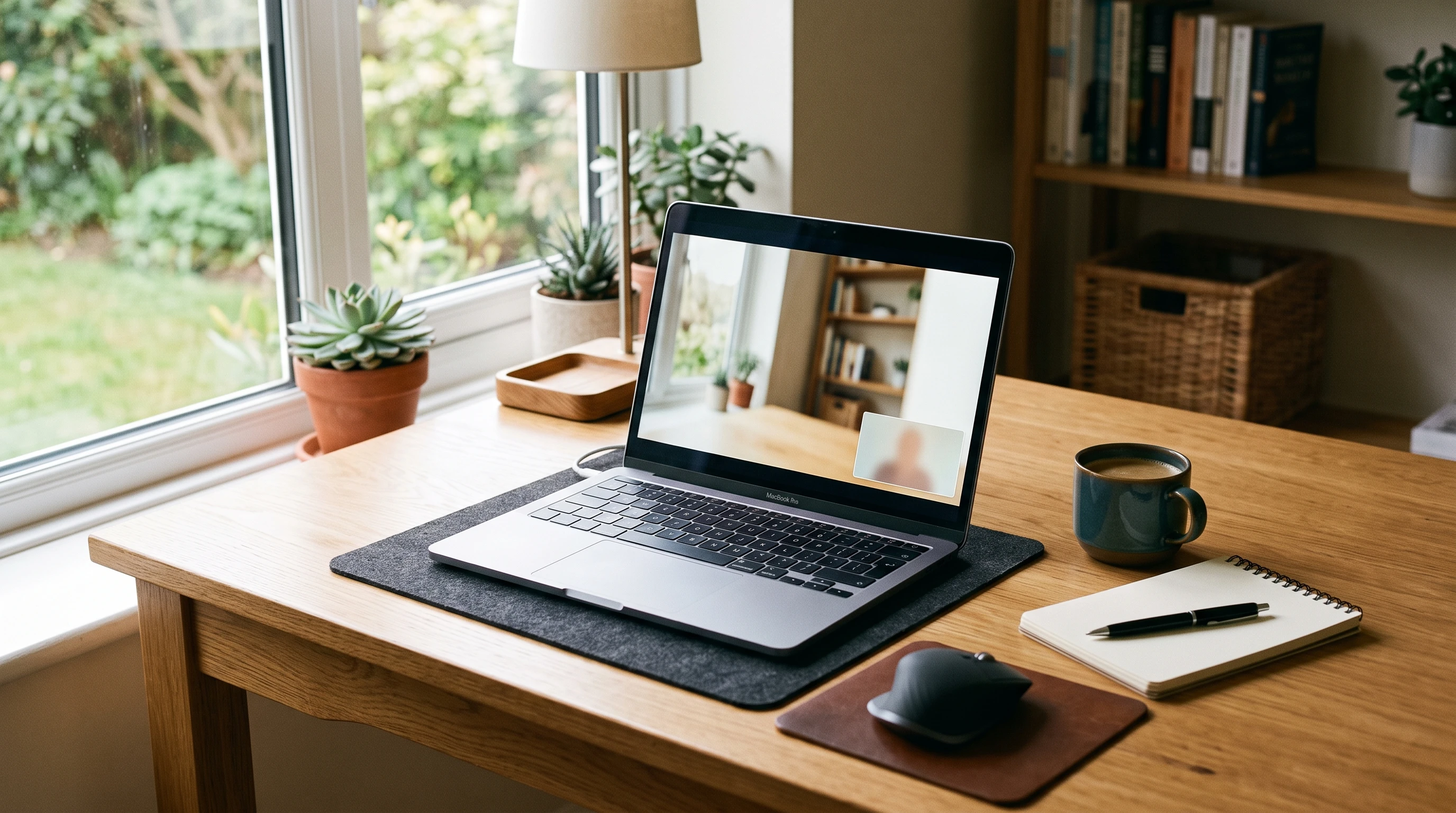
Best Video Conferencing Tools for Seniors
Choosing the right video call platform is a big step for anyone starting remote work. There’s no shortage of options out there, but a handful stand out for how easy they make things, especially if you’re not keen on fiddling with complicated settings.
- Zoom: Pretty much the standard for video meetings. The main appeal here is how straightforward it is to join a meeting; most of the time, you just click a link. Controls like mute and video are clearly labeled. It’s no wonder many seniors have found it approachable. Free plans are generous for one-on-one chats, but group calls have a time limit.
- Google Meet: If you already have a Gmail (Google email) account, you can launch Google Meet from your inbox with no extra sign-ups needed. It keeps things simple and runs right in your web browser, so there’s no need to download an app unless you want to.
- Microsoft Teams: This one is a bit more involved but offers handy features for full-blown work collaborations. If you’re part of an organization or community using Office 365, it’s already built in. The interface can look busy at first, but basic video calls are straightforward once you poke around a little.
- Skype: Around long before the others, Skype is still popular with many older adults. It’s reliable for both video and phone calls, and you can install it on computers, tablets, and smartphones.
If you’re just starting out, I think Zoom and Google Meet are especially worth checking out. There’s less to set up and fewer things to accidentally click. If you’re unsure, start with these; they’re among the most widely used and have plenty of support material online.
Getting Started: Setting Up Video Conferencing Tools for Seniors
The first real hurdle for a lot of folks is getting everything connected and ready to use. Here’s what I suggest as a basic checklist when setting up for your first video meeting at home:
- Device: You’ll need a laptop, desktop computer, tablet, or even a smartphone. If you have a device less than five years old, you’re probably good to go.
- Camera: Most newer laptops and smartphones have built-in cameras. For older desktops, you might need a small external webcam that clips onto your monitor.
- Microphone: Built-in mics usually work fine, but you can also plug in a headset for clearer sound. A basic headset from your local electronics store can step up your audio quality and make conversations much easier to follow, especially if you have hearing difficulties.
- Internet Connection: For smooth video, a stable WiFi or wired connection is really important. If the video is choppy, moving closer to your WiFi router can help. If you use a smartphone, your mobile data connection might also serve as a backup, though video uses more data than email or web browsing.
- Downloading/Installing Apps: Zoom and Skype have apps you can install right from their websites. Google Meet works best in a web browser, so having Chrome, Firefox, or Edge makes things easier. Sometimes, your device will prompt you if an update is needed, so it’s smart to say yes and keep things running smoothly.
- Creating an Account: For Zoom, Skype, and Teams, you’ll need to sign up with your email. For Google Meet, your regular Gmail login works. Keep your usernames and passwords somewhere safe, or write them down in a notebook you trust. If passwords feel like a pain, many browsers offer to remember them for you.
If you ever feel lost midway, YouTube has lots of walkthrough videos at a slower pace, which really help settle the nerves. Google searches like “how to join a Zoom call step by step” or “how do I use Skype on my computer” often lead to videos and picture guides designed for beginners and seniors.
Step-by-Step: Joining and Hosting a Video Call
Joining your first video call might feel intimidating, but I promise it becomes routine quickly. Here’s a step-by-step process for joining and starting your own meeting:
- Get the Meeting Link: For most video calls, the organizer sends you a meeting link by email or calendar invite. A meeting link is just a web address that takes you straight to your online meeting room.
- Click and Open: At the meeting time, click the link on your device. You may be prompted to allow access to your camera and microphone; just click “Allow.” If asked to download an app, follow the instructions, or choose “join via browser” if that option appears.
- Enter Your Name: Sometimes, you’ll be asked to enter a name that will show up onscreen to others. Just type your first name and hit “Join.”
- Check Video and Microphone: You’ll see options like “mute” (turn off your microphone) and “start/stop video.” The “mute” button usually looks like a little microphone; click it if you don’t want others to hear household sounds. The video button lets you control whether people can see you. It’s OK to keep the camera off if you’re nervous—many people do until they’re comfortable.
- Joining the Meeting: Once inside, you might land in a virtual waiting room; just wait for the host to let you in. Be patient, as the host sometimes lets in several people at once. If you ever get disconnected, use the meeting link to rejoin.
- Screen Sharing (optional): If you need to show a document or presentation, the Share Screen button lets others see what’s on your screen. A menu pops up so you can choose what exactly to share (don’t worry, you can unshare anytime). This can come in handy if you’re in charge of giving a short talk or want feedback on something you’ve been working on.
Hosting your own call is similar: You create a meeting link through your video app, email it to your contacts, and start the meeting when everyone’s ready to join. For work meetings, calendar invites often include the link automatically, so you don’t have to copy and paste anything. If you use your own account, check the options beforehand regarding who can join, whether a password is needed, or if there are waiting rooms. These features help you control the flow and keep meetings private.
Remote Work Tips for Seniors Using Video Calls
Making the Most of Every Call
- Lighting: Sit facing a window or lamp so your face is easy to see. Bright backgrounds can make you look like a shadow. Natural light is best, but a desk lamp can do the trick if needed. Play around with the location of your light source so you come across as clear and friendly on camera.
- Background: Choose a tidy, uncluttered spot if possible. Many apps have a “blur background” feature, definitely worth trying if your space is busy or you share a room with others. If you don’t want to use these digital backgrounds, a simple wall or neat bookshelf behind you works just fine.
- Sound Quality: Close windows or doors to cut outside noise. Headphones or headsets help block out echo and keep sound focused. Try to avoid areas where kids, pets, or TVs are running in the background, at least while you’re on the call.
- Check Beforehand: Open your video app a few minutes before the meeting to test your webcam and mic. Most platforms have a “test call” or “preview” option for a quick check. This can ease last-minute stress and ensure you’re ready to go once the meeting kicks off.
- Minimize Distractions: Let others at home know you’re on a call, put pets in another room if needed, and mute your phone if possible. A quiet environment helps everyone on the call hear what’s being said and makes communication clearer.
Anything that makes you feel a little more comfortable on camera is worth doing. Sometimes that’s just making sure you have a glass of water nearby or your notes handy so you don’t lose your train of thought.
Common Problems and Simple Fixes
Everyone encounters tech hiccups from time to time. Here’s how I handle the most frequent issues with video conferencing tools for seniors:
- Frozen Video: If you freeze or others freeze, it’s usually your internet connection. Try turning off your video for a few seconds, or move closer to your WiFi router. Sometimes, just closing other programs or browser tabs speeds things up. If possible, consider a direct cable from your modem to your computer.
- No Sound: If you can’t hear or others can’t hear you, double-check that your mic and speakers aren’t muted (both in the app and on your device). Plugging in headphones sometimes resets the audio settings automatically. Also, make sure the volume is turned up both in the app and on your laptop or device.
- Can’t Find the Meeting Link: Search your email for keywords like “Zoom” or “Meeting.” It’s often hiding in a calendar invite or the organizer’s last message. If not, ask them to resend it. Don’t feel bad if you misplace the link, it happens to everyone!
- Camera Won’t Turn On: Make sure no other app (like Skype or the built-in camera app) is already using your camera. Restarting your browser or computer usually sorts things out. Sometimes, privacy settings on your device can block the camera; check your settings if the problem keeps coming back.
- Other People Can’t Hear You: Double-check that you haven’t hit the mute button. If you’re using headphones, ensure they’re connected properly. If something’s still off, try disconnecting and rejoining the call or restarting the app.
If you feel stuck, don’t be shy about asking for a quick phone call with a colleague or family member. Sometimes problems are fixed in just one or two clicks once you know what to press. It’s absolutely normal to stumble through the first few calls; what matters is that you keep trying and learn a bit each time.
Video Conferencing Best Practices for Seniors
Remote Meeting Etiquette
- Mute When Not Speaking: Background noises add up fast, so use the mute button when you’re just listening. This keeps the audio clear and avoids distractions for others.
- Stay Attentive: Keeping your camera on, if possible, makes it easier for others to connect with you, even if it feels odd at first. It helps build trust with the team and signals you’re actively participating.
- Dress Comfortably and Presentably: You don’t need office attire, but a neat shirt or sweater works well, even if you’re wearing comfy pants off camera. Putting in a bit of effort helps you feel “in work mode” and signals to others that you’re taking the meeting seriously.
- Be Punctual: Logging in early gives you a moment to check your setup and shows colleagues you value their time. This also lets you troubleshoot any last-minute problems without stress.
- Use Chat Features: Most platforms have a chat or message window for questions, notes, or sharing links without interrupting the speaker. Super useful for quietly following up if you’re unsure about something or want to share a document during the call.
Meeting etiquette isn’t just about following rules. It’s about making everyone feel comfortable and included. These little things help remove friction from remote collaboration.
Building Confidence: How Seniors Can Get Comfortable with Video Conferencing
Like any new skill, using video conferencing tools for seniors feels easier with small steps and regular practice. Confidence grows over time, especially when you see how useful these tools can be for everything from remote work to catching up with friends and family. Here are a few extra strategies for building your comfort and skill set with video calls:
- Practice Runs: Have a “practice meeting” with a family member or friend. Go through the steps together, join the meeting, practice muting and unmuting, and try sharing your screen. This takes the edge off when it’s time for a real call. If possible, set up a mock work meeting where you run through everything from start to finish, just like the real thing.
- Use Online Tutorials: There are many video walkthroughs for specific platforms like Zoom and Skype, and many are designed especially for beginners and older adults. These can be replayed as many times as you need and often include step-by-step images.
- Ask for Help: Don’t hesitate to reach out to coworkers or loved ones. Many of them were learning just a little while ago themselves, and they understand the learning curve. Often, family members can walk you through tricky parts over the phone or even via a screen share.
- Explore One Feature at a Time: There’s no need to master every setting on day one. Get comfortable with the basic controls first, such as muting your mic or turning video on/off. Features like background blur or screen share can come later, one at a time, as your confidence grows.
- Reward Yourself: It may sound silly, but treat yourself to a cup of tea or a small break after a successful video call. Acknowledge small wins—each successful call is a step toward mastery.
Every call you make helps build experience and confidence. Before long, joining a virtual meeting feels no different than answering the phone. Remember, it’s normal for things to go wrong occasionally and for technology to misbehave. Over time, these challenges become easier to fix or laugh off.
Frequently Asked Questions
Here are some of the most common questions I’ve heard from seniors exploring video conferencing for remote work:
What’s the best video conferencing platform for elderly remote workers?
It really depends on your comfort level and what your employer or group uses. Zoom and Google Meet tend to be friendliest for beginners, but Skype can be great for smaller calls or if you’ve used it before. Don’t worry about getting it perfect; go with what feels simplest to you and has the support you need.
Do I need to spend money on fancy equipment?
Most modern computers, tablets, and smartphones work just fine out of the box. You might consider a simple USB webcam or headset if you want to upgrade, but it’s not required for most calls. If your current setup isn’t cutting it, local libraries and community centers sometimes offer loaner gear or quiet spaces for video calls, too.
How secure are these video call platforms?
The big providers like Zoom and Microsoft Teams have implemented many security features. For added peace of mind, always use unique meeting links and passwords, especially for work-related meetings. Don’t share your meeting invitations publicly. Most platforms also let you “lock” a meeting once everyone’s joined, preventing unwanted guests.
I’m worried I’ll press the wrong button and disconnect the call. What should I do?
Don’t worry; everyone’s accidentally hung up at some point. You can always rejoin using the same meeting link. Each call helps build your comfort with the controls. If you get kicked out for any reason, just double-click the link or call the organizer; most people will understand and help you back in.

Benefits of Video Conferencing for Seniors in Remote Work
Video conferencing offers more than just a way to join meetings. For seniors, these tools can:
- Keep you connected to colleagues, clients, and professional partners, regardless of where you live. Video calls allow you to participate in projects or meetings from the comfort of your home. This newfound accessibility means distance is less of a barrier to meaningful work and social connections.
- Open new opportunities for part-time work, volunteer positions, and social groups you might not access otherwise. Many organizations now seek remote support for roles that suit seniors’ expertise and interests. From mentoring others to working on creative projects, there are more ways than ever to put your skills to good use.
- Break down isolation and help maintain regular social interaction—even a weekly meeting can bring some routine and energy to your days at home. Staying active with video calls supports mental health and can introduce you to new friends and professional contacts from around the globe.
- Cut down on commute time and expenses, giving you more flexibility for personal projects, family, and leisure. You no longer need to spend hours traveling; instead, you control your work schedule and choreography, fitting professional commitments around things you enjoy most.
Once you get the hang of video calls, they start to feel just like a regular chat or group meeting. Every call is a step toward building digital fluency. The best part is that each call grows your confidence, opens more doors for remote work, and brings you closer to mastering the digital side of today’s working world. The technology may change over time, but the key is to keep asking questions, stay curious, and enjoy the new connections you’re making along the way.
This article was created with AI assistance and reviewed by a human editor.