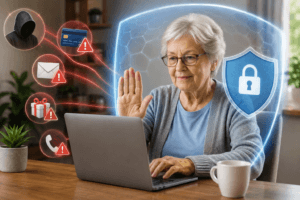
Email has become an essential tool for staying in touch, handling daily tasks, and accessing important services. For seniors, having a reliable and secure email account makes it easier to keep up with friends and family, receive important updates about health or finances, and register for things like online banking, shopping sites, or medical appointments. Using email safely is really important. Scams and security risks are all too common, and knowing how to spot them can help you avoid many problems.
Comparing Email Services for Seniors: Choosing What Works Best
Picking the right email service can make a huge difference in your comfort and safety online. I’ve tried several options, and here’s what I’ve found with some of the top email providers for seniors:
- Gmail: The clean layout and big, clearly labeled buttons make Gmail easy to use. I like the strong spam filtering and built-in security tools like two-factor authentication. Gmail works well with accessibility features like screen readers, and Google offers lots of support articles and help forums. Google’s interface is regularly updated to stay current with accessibility needs, ensuring seniors continue to have support and easy-to-read screens.
- Outlook (by Microsoft): Outlook’s inbox organization tools help keep things tidy. There are simple options for increasing text size and enabling dark mode to reduce eye strain. Microsoft offers direct support chat and step-by-step guides for troubleshooting. The ability to link calendars and reminders is a real convenience for seniors managing appointments and medication schedules.
- Yahoo Mail: Yahoo Mail keeps things straightforward with a classic inbox. You can increase font size and use high-contrast colors for easier reading. Their help site offers practical answers, but direct live support is harder to find. Yahoo has added a one-click unsubscribe feature for unwanted emails, making account maintenance easier.
- AOL Mail: AOL still offers a simple, no-frills experience. The homepage is a bit busier, but once you get into the inbox, it’s clear and easy to follow. Accessibility settings are limited, but you’ll find an active help community and basic phone support for common issues. AOL has long been a familiar name for many seniors, and returning to it can feel comfortable for those who used it decades ago.
When I compare email services for seniors, ease of use and security features are at the top of my list. Gmail and Outlook both stand out for safety and support, while Yahoo and AOL offer more familiar layouts for those who used them in the past. Try creating a test account and see which layout feels easiest for you. It can help to visit each site and explore the help section before deciding, especially if visual clarity and large buttons are important to you.
How to Set Up an Email Account: A Simple Walkthrough
Creating an email account doesn’t have to be complicated. Here’s how I help friends set up a new account step by step. These steps work with most top email providers for seniors. If you get stuck, you can always ask a family member or tech support for help. Sometimes libraries and senior centers also offer workshops or one-on-one sessions to get started with email accounts, so it’s worth checking nearby options if you need in-person help.
- Go to the homepage of your chosen provider (like Gmail or Outlook).
- Click “Create Account” or “Sign up.” The wording might be a bit different depending on the provider.
- Fill in your name, birthdate, and mobile phone number. You’ll need to create a username (this becomes your email address) and a password you’ll remember but that others won’t easily guess. A strong password is important—consider using a memorable phrase in combination with numbers and symbols for added security.
- Some providers ask a few security questions. Pick answers you’ll remember, or write them down and keep them somewhere safe, such as in a clearly labeled notebook.
- Follow the instructions to confirm your phone number or an alternative email address (if you have one). This step helps later if you ever need to recover your account. Occasionally, you might need to enter a verification code, so keep your phone close by during setup.
- Once the account is set up, log in and try sending a test email to yourself or a family member. That way you know it works, and you’re ready to use it for any service you need. Practicing sending and receiving emails, adding contacts, and organizing your inbox is a helpful first step.
If you’re new to this and want extra security, ask a trusted family member to help with setup. Don’t be shy about taking your time with each step; there’s no need to hurry. Many providers save your progress so you can take a break and return later. And if you want to use larger fonts or higher-contrast modes from the start, most services let you adjust them before finishing setup.
How to Secure Email Accounts for Seniors: Staying Safe and Private
Keeping your email safe is really important. Your inbox can include bank details, health info, and personal conversations. Here’s my own guide to email security for seniors:
- Choose a strong password. Use a mix of letters (uppercase and lowercase), numbers, and a symbol or two. A phrase you’ll remember works well. For example: “SpringLake2024!” If you write your password down, keep it in a locked drawer. Avoid using old addresses or birthdates in your passwords, as these details can sometimes be guessed by scammers.
- Turn on two-factor authentication. This means you’ll receive a code via text message or in an app when you sign in on a new device. It’s a great way to block hackers. Most of the best email services for seniors offer this for free in their security settings, and it only takes a minute to set up.
- Check your recovery options. Make sure your phone number or a backup email is added to your account. That way, if you forget your password, you can easily regain access. Set a reminder to review this information every few months or after getting a new phone.
- Review privacy settings. Look for settings that let you control who can see your data, what happens if someone logs in from elsewhere, and what personal info shows on your profile. Stick to the basics and stay cautious about sharing too much. If you’re unsure about a setting, it’s usually best to keep things private.
- Be careful where you sign in. Try to avoid public computers, and only use connections you trust. If you have to use a public WiFi, wait to check your banking or sensitive emails until you’re back on a private connection. Using your own device is always the safest choice.
In addition, it helps to update your password at least once a year and use a different password for each major online account, not sharing your email password with anyone—even those you trust. Write down a backup plan for account recovery, like where you keep password hints or recovery information.
How Seniors Can Avoid Email Scams: What to Watch For
Email scams are unfortunately common, but there are some easy ways to spot the warning signs. Here’s how I help seniors avoid email scams:
- Phishing attempts often look like messages from your bank, Social Security, or popular companies. They usually ask you to “verify” something quickly or click a link. If you’re not sure, call the real company’s known phone number instead of clicking the link. Official organizations rarely request sensitive information via email.
- Fake prize or lottery emails promise big winnings or gifts. If you haven’t entered a contest, chances are it’s not real. Be extra careful if the message pushes you to act fast or pay a “fee.” Ignore messages that sound too good to be true, especially ones that ask for personal details or payment up front.
- Tech support scams might say your account is locked or there’s a problem with your device. Real companies don’t usually send emails asking for passwords or remote access out of the blue. If in doubt, ask a trusted person for advice. Never give remote access to your computer unless you’re absolutely certain who you’re dealing with.
- Suspicious links or attachments could lead to fake websites or to viruses being installed on your device. If you’re not expecting an attachment, don’t open it, even if it looks like it’s from someone you know. If a friend’s email seems strange or contains odd links, check with them by phone before clicking.
Red flags include typos, urgent requests, addresses that look strange (like “bankofamercia-login.com”), or offers that sound too good to be true. When I see something odd, I always double-check with the person or company before taking action. Staying a little skeptical is a smart habit. Taking your time and rereading questionable messages before clicking on anything is never a bad idea.
Seniors’ Email Safety Tips: Staying Secure Day to Day
I follow a personal checklist to help keep my email safe every day. These steps are part of the best senior email safety tips you can practice:
- Never share your email password, even with friends or “support” people. If someone asks for your password, it’s a sign to be cautious.
- If an email comes from an unknown sender, verify who they are before clicking or responding. Hover over sender addresses to spot anything suspicious.
- For emails about money, health, or other sensitive info, use your own secure WiFi rather than public networks like those in coffee shops or libraries. Public networks can expose your data to risks.
- Always log out if you check your email on someone else’s device or a public computer. Leaving accounts open can leave your email exposed to others.
- Update your device’s security software and your email password regularly. Security updates often protect you from new threats, so accept updates when prompted.
- Set up account recovery options and check that they are correct every few months. Make a note to review contact details and passwords at least twice a year.
Writing these steps on a note next to the computer helps me remember them, especially when something unexpected arrives in my inbox. Asking a trusted friend or family member to run through these tips with you now and then can help keep your memory fresh.
Email Management Tips for Older Adults: Declutter and Stay Organized
A full inbox can be confusing, but organizing your emails can make things much easier. Here are the email management tips for older adults that work for me:
- Folders (or “Labels” in Gmail): Set up folders for things like family, bills, and appointments. Drag emails into these folders so you can find them later without digging through everything. Color-coding or using icons is another way to make folders stand out if your provider allows it.
- Unsubscribe from newsletters or ads you never read. At the bottom of most marketing emails, there’s usually an “unsubscribe” link. Clicking it stops more messages from piling up. Be careful to click only the official unsubscribe links, and never enter your password on an unsubscribe page.
- Set up filters or rules: Most email providers let you automatically send messages from certain people (like your doctor or family) into specific folders. This keeps your inbox clear of distractions. Filters can also highlight important emails so you don’t miss key messages.
- Mark spam: If something unwanted gets through, mark it as “spam” or “junk” instead of deleting it. This helps your email provider automatically block future junk. Don’t reply to spam, as it can confirm your email address to scammers.
Sorting emails once every week keeps things from getting out of hand. I set aside a few minutes on Mondays to tidy up, so the inbox never feels overwhelming. Scheduling a regular inbox clean-up, such as every Monday morning or Friday afternoon, becomes a helpful habit. You can also set reminders on your phone or calendar.
Seniors’ Email Account Management: Ongoing Tips for Peace of Mind
Managing your email account well doesn’t end after setup. Good senior email account management gives you ongoing peace of mind. Here’s what I do to keep things running smoothly:
- Update recovery information if you get a new phone number, or set up an alternate email you can access if needed. This comes in handy if you ever lock yourself out. If you move or change internet providers, double-check that all your details are up to date.
- Review account activity every couple of months. Most providers (like Gmail and Outlook) let you see which devices have accessed your account. If you spot something strange, reset your password right away. Look out for devices or locations you don’t recognize and delete unfamiliar ones.
- Ask for help early. If you’re not sure about an email or notice something odd with your account, reach out to family, a friend, or the provider’s support. Getting help sooner can make a big difference. Tech support services for seniors exist in many communities and libraries—don’t hesitate to use these resources.
- Clean up unused accounts. If you have old email accounts you don’t use, delete them or forward important emails to your current account. Fewer accounts to manage mean fewer chances of confusion or security issues, and they help cut down on unwanted emails and password resets.
It’s also worthwhile to keep a list (on paper, securely stored) of your active email addresses and corresponding passwords. Let a trusted person know where you store this list in case of emergency, but don’t share your actual passwords with anyone who doesn’t need them. Set a calendar reminder each season to review your account settings, update passwords, and tidy old messages. Ongoing care makes things run smoothly and keeps your digital life in order.
Encouragement and Quick Recap Checklist
Email opens up a world of easy connection, quick updates, and helpful tools for staying organized. With a little patience, some practice, and these simple senior email safety tips, you can manage your email confidently and safely at any age.
- Pick the best email services for seniors by trying several and seeing which feels right.
- Follow simple steps to set up and secure your account.
- Use strong passwords, update recovery info, and be alert for email scams.
- Stay organized with folders, filters, and regular inbox tidying.
- Don’t hesitate to ask trusted people for help with your senior’s email account management or if you spot anything suspicious.
Mastering email is absolutely possible with a gentle approach. As you get more comfortable, you’ll enjoy the convenience and safety it brings to everyday life. Email may seem overwhelming at first, but repeated use builds confidence, and following the above tips helps ensure you stay secure while making the most of what email has to offer. Don’t forget to check in with other seniors—sharing experiences and tips goes a long way toward making everyone’s digital adventure safer and easier.

This article was created with AI assistance and reviewed by a human editor.